Register groups are a great way to organise attendees in your Timetable class registers. For example, you might group attendees by skill level, ability, or by team names such as Yellow, Red, Blue, and Green, which work on different activities during sessions.
Setting these groups up is quick and easy.
How to create Register Groups
Steps:
-
Go to Home > Timetable
-
Click on the class where you want to create groups
-
Select the Register Groups tab
-
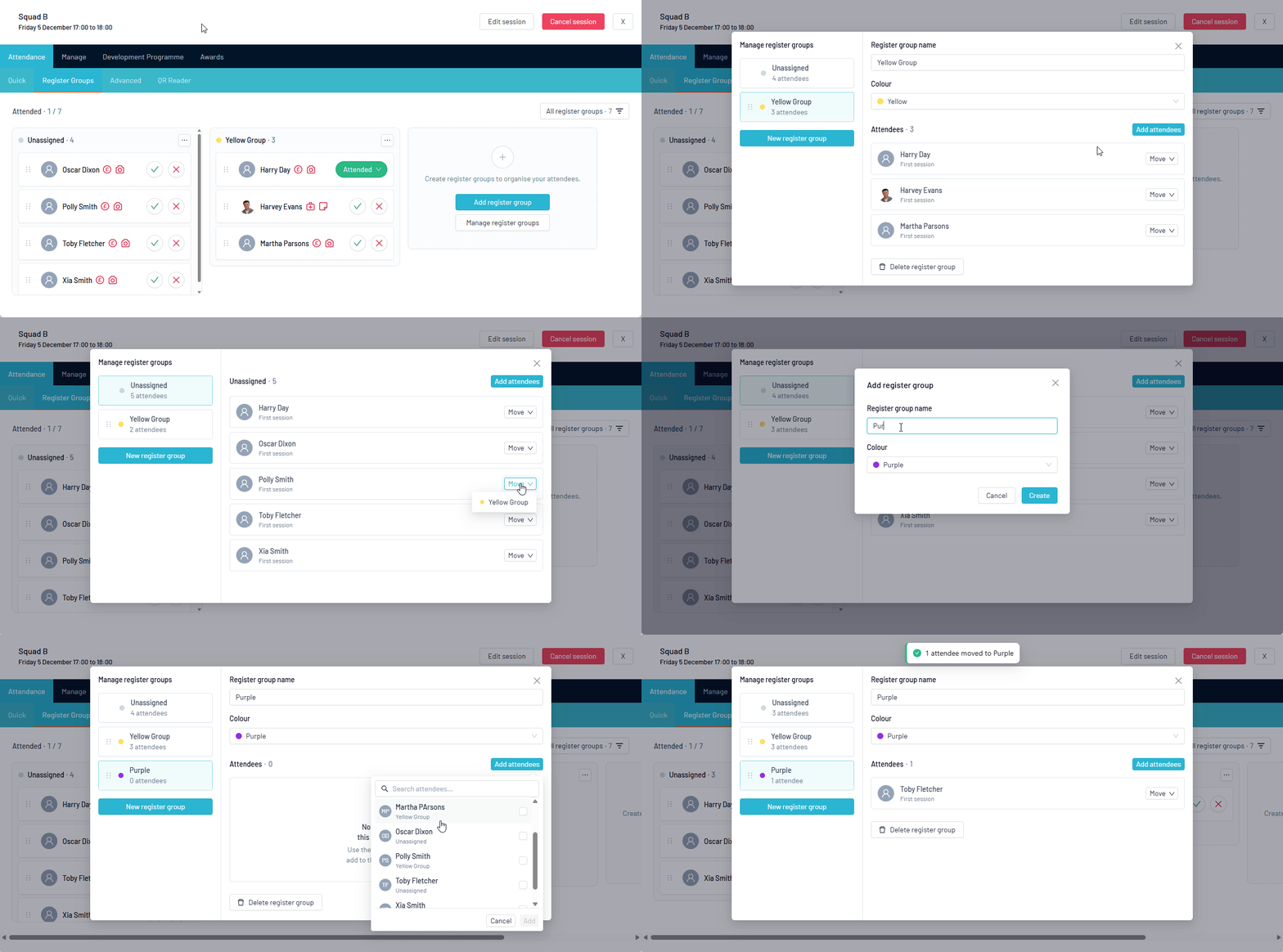
Here you can either Add new register groups or Manage existing groups.
Adding attendees to register groups
-
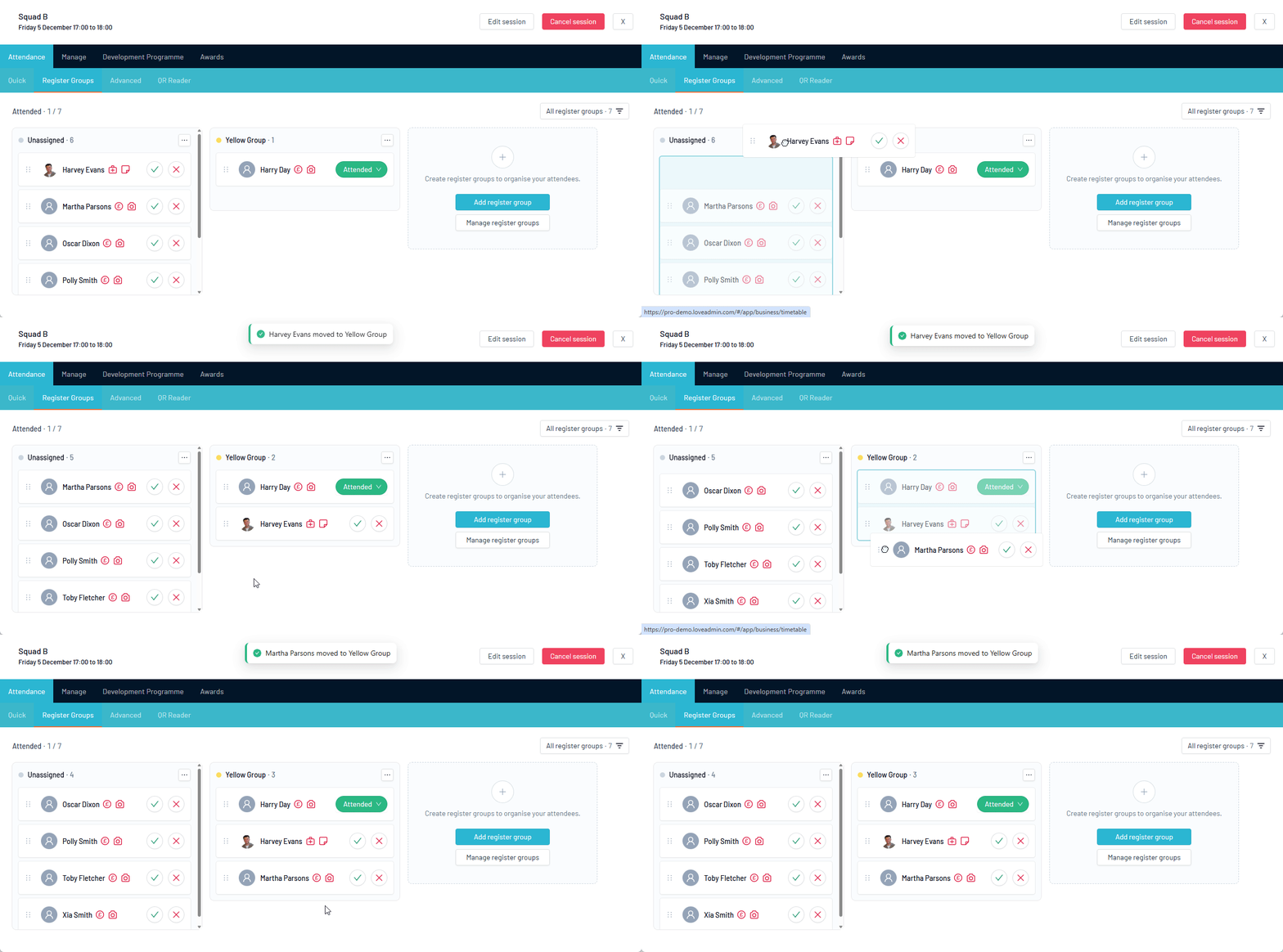
Attendees can be added easily by clicking and dragging them from the left-hand side.
Note: Register groups and their attendees will automatically carry over from session to session, as long as it’s the same class on the same schedule.
Removing attendees from register groups
-
Simply drag them back to your Unassigned group.
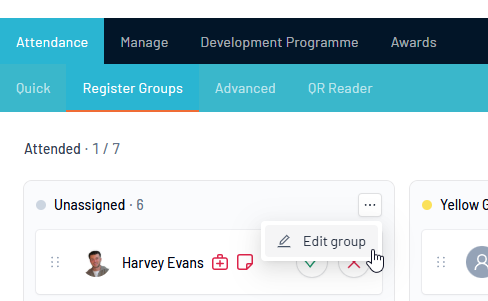
Managing register groups via the 'edit group' menu
-
You can also add/remove attendees and manage groups by clicking the Edit Group menu (three dots) in the top-right corner of the group container. This view gives a variety of ways you can manage your attendees and move them between the groups.