
For a quick guided tour of this feature, select the 'Take a look' button to get started.
Tip: To view it in full size, click the full screen icon in the top-right corner
Select your gymnastics insurance provider
-
Go to Home > Settings > Organisation > Gymnastics insurance
-
Select your provider from the dropdown
-
British Gymnastics (BG) and Independent Gymnastics Association are currently supported
-
- Click 'Save Provider'
Importing your insurance data
Once you've selected your insurance provider, the next step is to import your insurance data into the system.
Uploading your file
- Go to Home > Settings > Organisation > Gymnastics insurance
- Select Import insurance data
- Choose your file and upload it
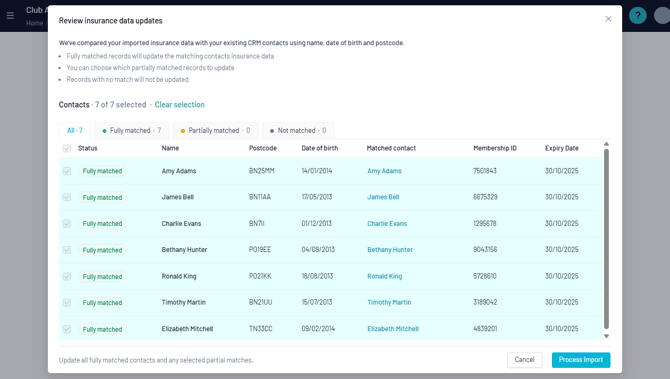
LoveAdmin will then compare the information in your file with the contacts already in your CRM. Records are matched using:
- First name
- Last name
- Date of birth
- Postcode
You will see your imported members grouped into three categories:
- Fully matched
- Partially matched
- Not matched
Tip: Good data helps improve matching.
If you notice a high number of partial or unmatched records, it may help to review your contact data. Clean and consistent details make imports more accurate and reduce manual matching.
Learn more: How to keep your data tidy
Viewing and managing insurance data
Contact Record
- Click on a contacts name to open their contact record
- Expand the 'BG/IGA Membership details' tab on the right
- If required, click on the details to edit and save

Tip: Scroll to the bottom of the article for more information on managing your renewal reminder notifications
Contacts page
- Go to Home > Contacts
- Select 'Manage Columns' at the top-right
- Add in the BG Member Number and BG Expiry Date columns
- Click the Export button if required
Tip: You can use the BG Member Number and BG Expiry Date column headers to quickly sort your data, for example by expiry date.
Timetable
- Navigate to Home > Timetable
- Select a session
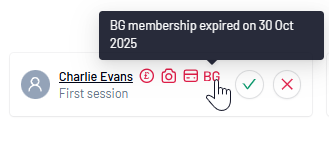
Quick View:
If you see an alert icon, you can click the gymnast’s name to open their contact record and update their details or send a renewal reminder:
Advanced View:
The Advanced view provides more detailed visibility and filtering. Use the insurance filter to show:
- Gymnasts with active insurance
- Gymnasts with expired insurance
- Gymnasts with no insurance recorded
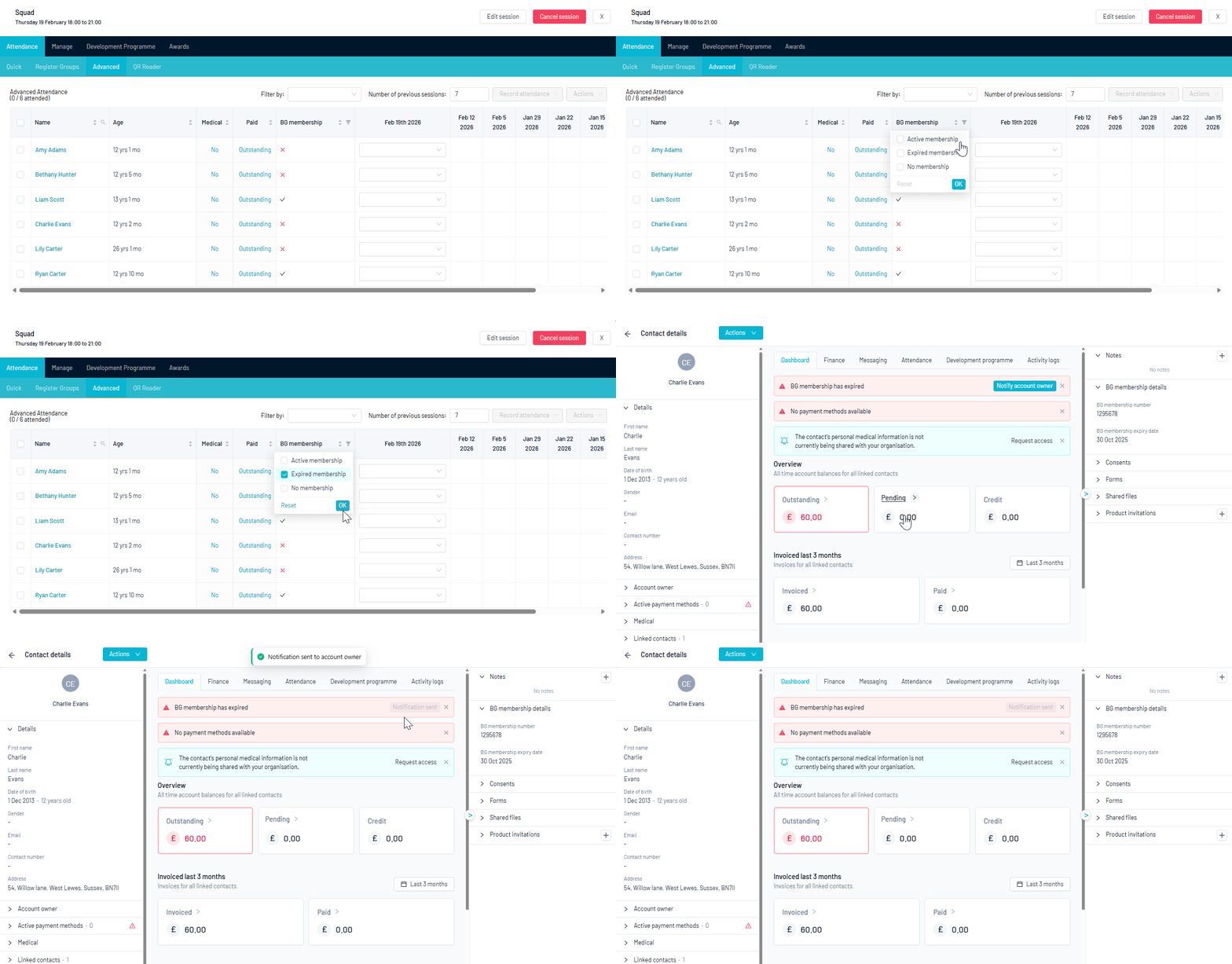
Expired insurance reminder notifications
Managing the email template
-
Go to Home > Settings > Communication > Email templates
-
Search for the ‘on expired insurance membership’ template in the dropdown
Setting the notification timing
-
Go to Home > Settings > Notifications
- Select the 'Attendance' category from the left-hand menu
- Configure the automated notification settings as required
For more information on managing your notifications, click here
Tip: We recommend setting the expired insurance notification to also post to the JoinIn timeline. This ensures parents using the JoinIn app receive a push notification, so the message isn’t missed in a busy inbox.
#bg #iga #british #gymnastics #insurance #status #membership #import #check